Huawei Semiconductor Business Unit President He Tingbo has presented an updated Tau Law paper detailing real-world Kirin 2026 test results, covering everything from heat dissipation to power consumption on the upcoming mobile chips.
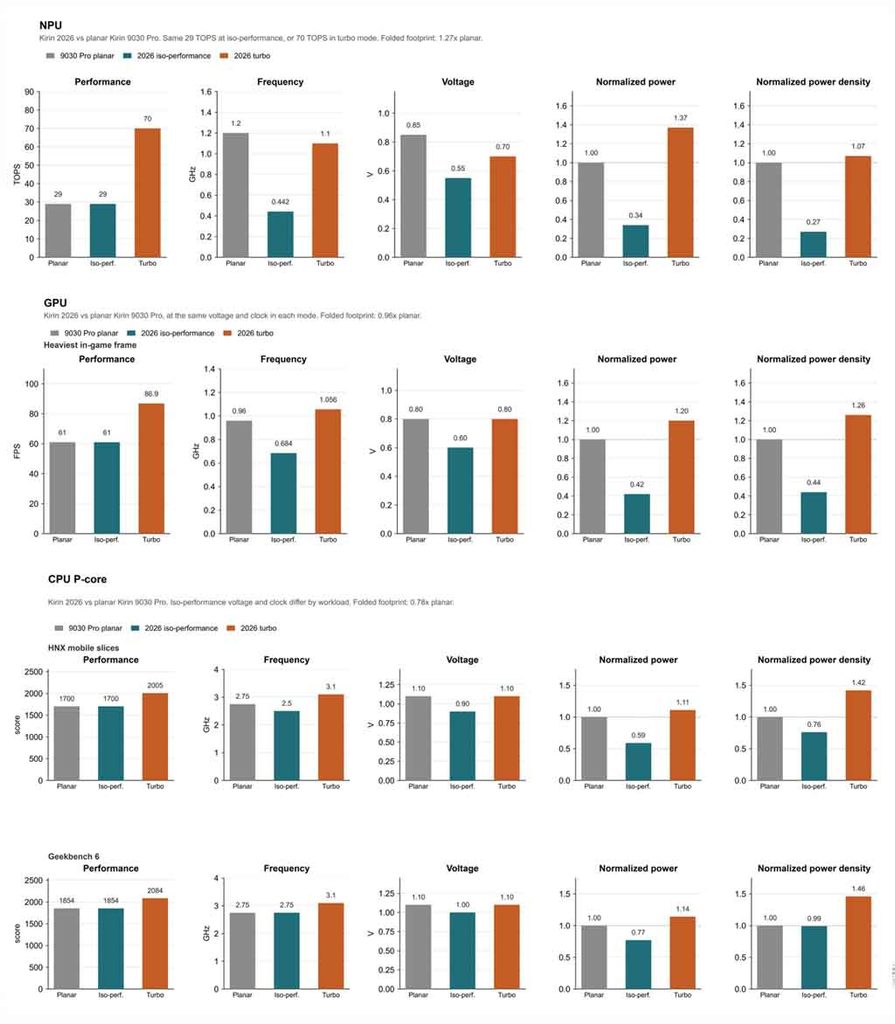
According to Tingbo, the new chipsets show a 55% increase in transistor density, alongside a 66% cut in NPU power consumption. GPU and CPU power consumption dropped by 58% and 41%, respectively, compared to the Kirin 9030 Pro under matching performance conditions. Tingbo, the chief scientist behind the paper, attributed most of a chip’s energy consumption not to the computing process itself but to data transmission.
LogicFolding’s role in the results
The updated Tau Law paper puts particular focus on heat dissipation and power consumption, issues that became a hot topic following the introduction of LogicFolding. Under the traditional view, stacking active transistors vertically should raise power density and heat generation per unit area, but Huawei’s results with the Kirin 2026 series run counter to that expectation.
LogicFolding is said to maintain the same performance level in the Kirin 2026 chip while enabling 29 TPOS of computing power, a voltage reduction of 0.30V, and a 73% reduction in power density.
Test results by scenario
Huawei detailed the following results from its testing:
61 FPS condition: the GPU runs at 200mV lower than the Kirin 9030 Pro, cutting power consumption by 58%.
HNX testing: the CPU matched the Kirin 9030 Pro’s performance while delivering an 18% improvement, a 9% lower frequency, 200mV lower voltage, and a 41% reduction in power consumption.
Turbo Mode: the Kirin 2026 NPU reaches a maximum of 70 TPOS, a 141% improvement over its predecessor, while boosting GPU frame rate by 42%.
Additional measurements showed that typical core wiring length can drop by 20% after folding, shortening some critical data transmission paths by up to 70%, while clock wiring in processing modules is reduced by 28%.
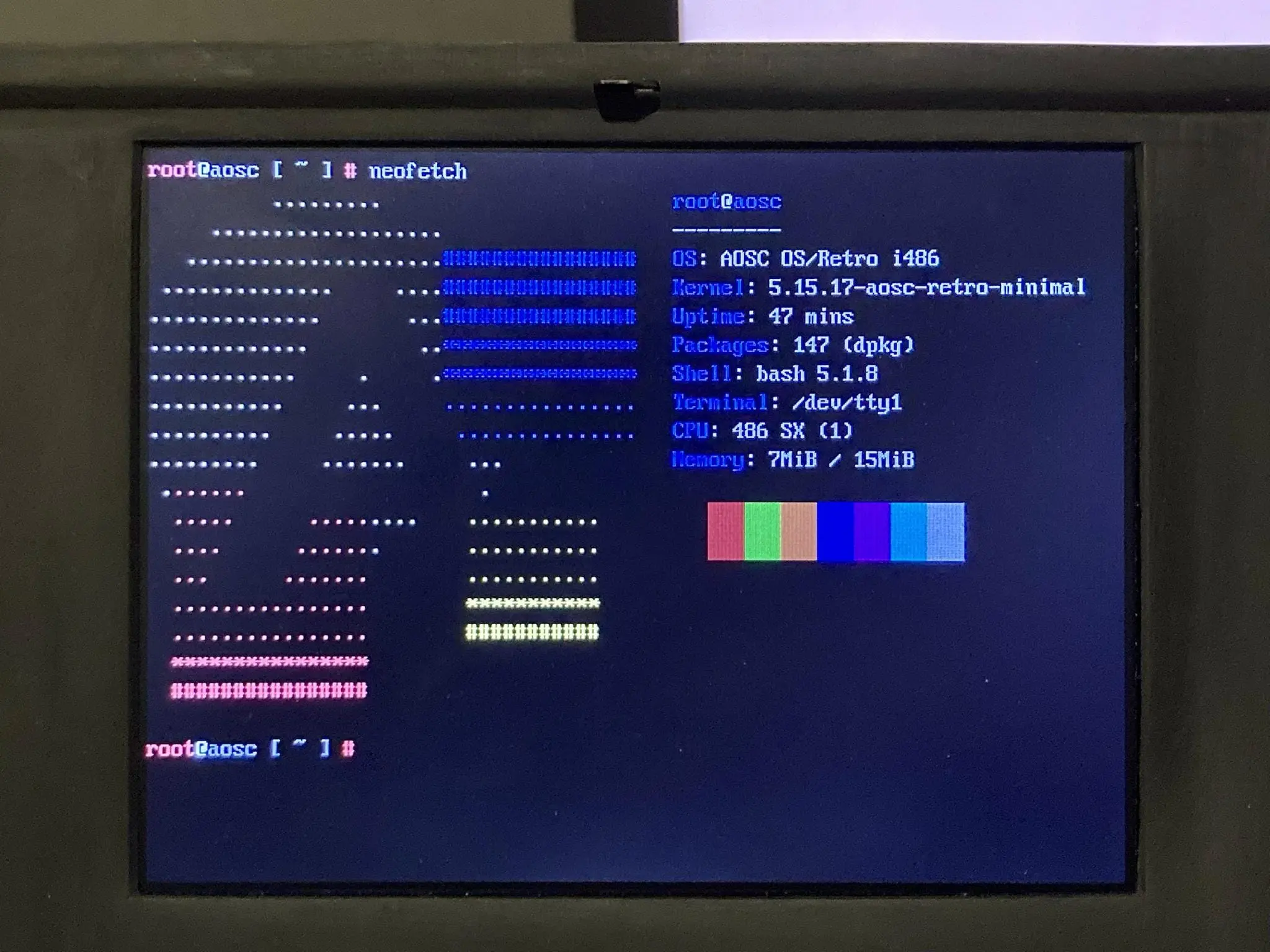
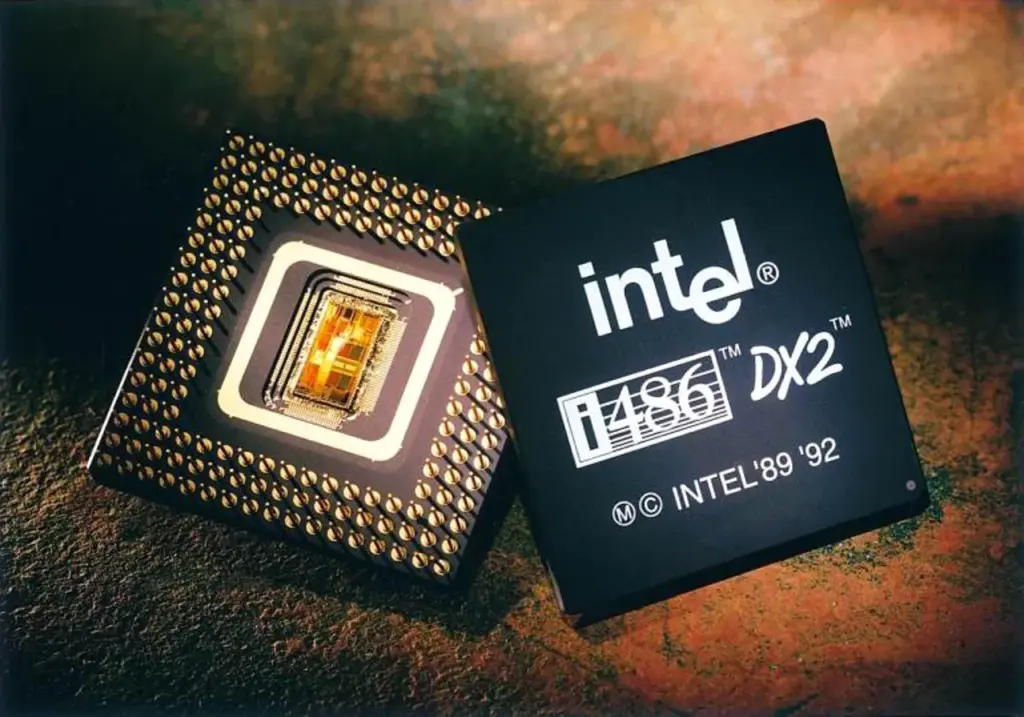
In terms of current Linux, it could be time to retire your 37-year-old Intel 486 system because OS kernel developers seem to have begun to remove support for this venerable CPU. According to Phoronix, fixes intended for the Linux 7.1 kernel appear to have verified the change. In order to get a few more years out of the platform, people who still treasure their 486 PCs and use them to run a recent version of Linux should probably make sure they run one of the current Linux LTS kernels. As an alternative, they might upgrade to a Pentium or perhaps one of the top CPUs on the market in 2026.
It should come as no surprise that 486 support has been patched out. First of all, it is outdated—the first examples were published in 1989—and contemporary Linux distributions are becoming increasingly resource-hungry. Second, Linus Torvalds, the man behind Linux, has hinted that 486 support would be discontinued. According to the Linux tycoon, there is “zero real justification” to keep supporting the 486 CPU. He even said that it was harmful to upstream Linux kernel development efforts to continue supporting it.
However, developer Ingo Molnar is likely to be remembered as the gallowsman. According to Phoronix, Molnar wrote a patch “that first takes rid of the CONFIG_M486SX, CONFIG_M486, and CONFIG_MELAN Kconfig build option.” It essentially indicates in code that the 486 is on borrowed time.
“In the x86 architecture we have various complicated hardware emulation facilities on x86-32 to support ancient 32-bit CPUs that very very few people are using with modern kernels,” commented Molnar in a note accompanying the patch. “
Sometimes, this compatibility glue even causes issues that people have to spend time fixing when they could be doing other things. Then, in order to remind readers who signed the death certificate for the 486, he restated some of Torvald’s comments.
We are confident that using outdated Intel 486 PCs will continue to be enjoyable and even productive. For instance, we reported earlier this year that an open-source 486 motherboard was created from the ground up and passed compatibility tests for Linux, DOS, Doom, and other operating systems.
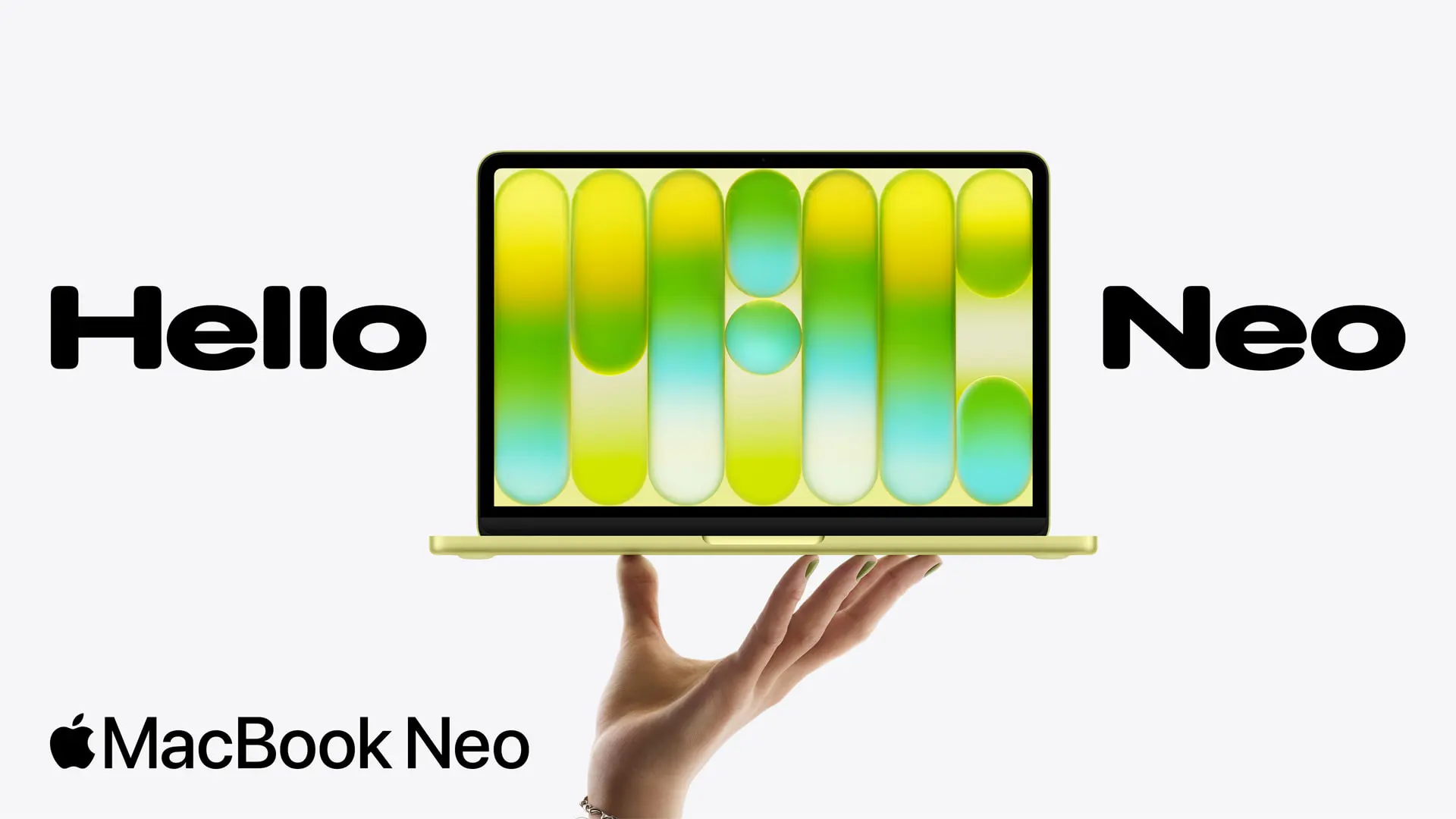
Macs from Apple have always been thought of as pricey, high-end gadgets. Apple is obviously unable to give up its preference for high-end devices, but it is able to make them reasonably priced. With the launch of the MacBook Neo, which starts (and has been tested) at $599, Apple has created notebook that is remarkably affordable for the majority of users. It’s also encouraging to see a big corporation introduce a device at an unprecedented low price, given that rival PCs are frequently becoming more expensive due to the RAM and storage requirements of AI hyperscalers.
Furthermore, affordable does not equate to cheap. The MacBook Neo boasts a bright, clear display and the same high-quality aluminum body as any other Mac. It doesn’t feel like a discount bin system at all.
However, Apple has made some concessions. The keyboard isn’t illuminated, and the two USB-C ports aren’t as fast as many others these days. However, Apple built a surprisingly powerful device that might be among the greatest ultrabooks at this mass-market pricing provided you can put up with those sacrifices.
MacBook Neo Design
The MacBook Neo is like a magic trick; it doesn’t feel or look like a cheap notebook.
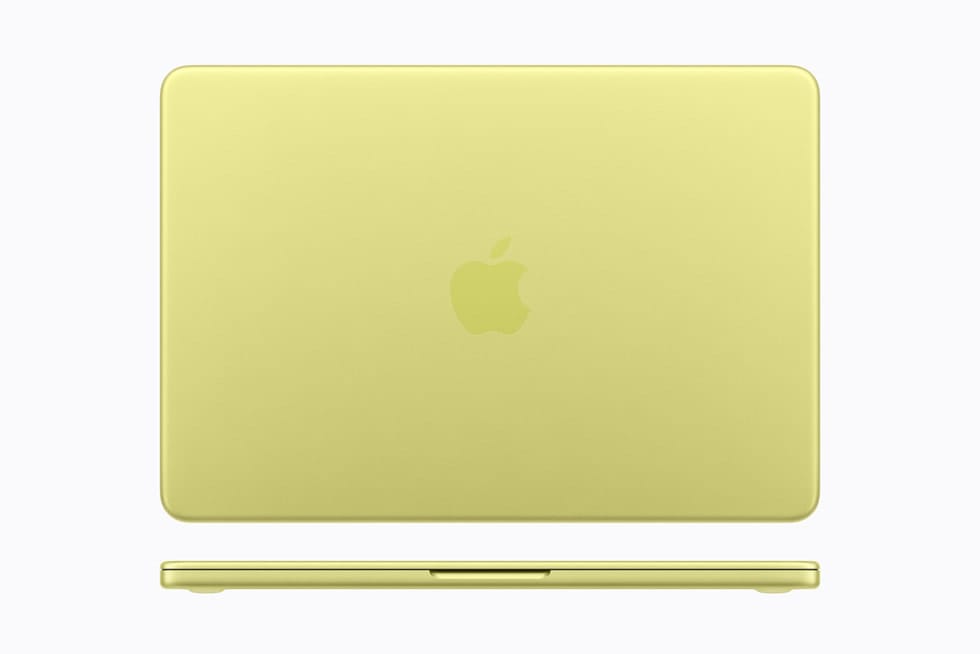
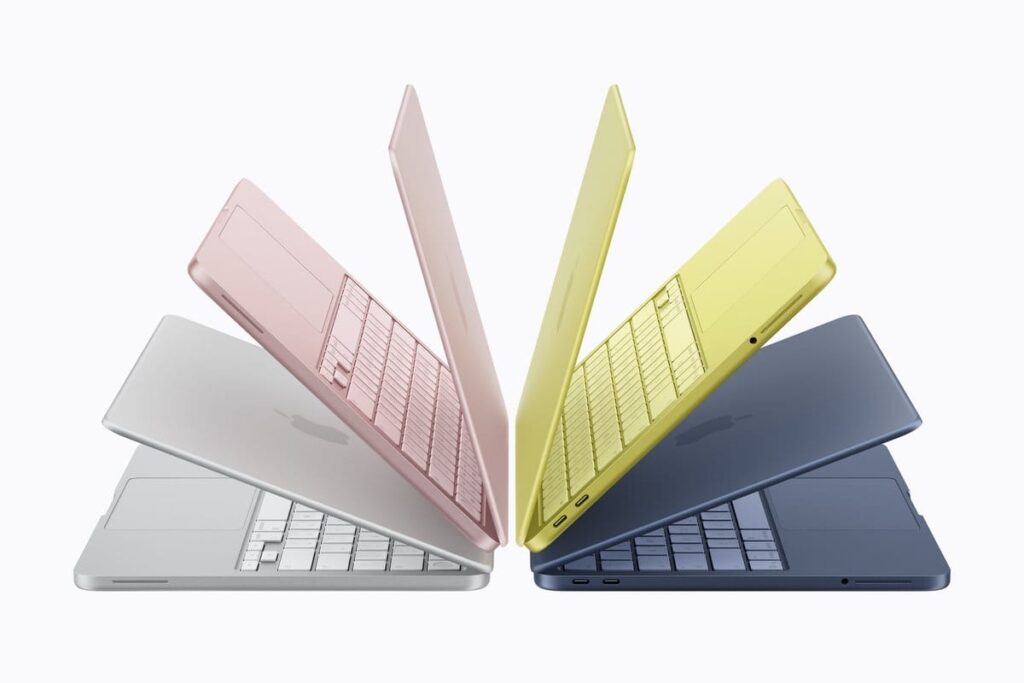
Here, a lot of the lifting is done by the metal body. The Neo feels like a high-end device the moment you touch it and raise the cover with one finger. This is the real stuff; it doesn’t feel inferior. Although the colors are entertaining, we would still want to see Apple add more colors to the Neo, much like they did to the iMac.
Like the MacBook Air and MacBook Pro, you still get flat sides and rounded edges. Instead of being embossed like on the more expensive devices, the Apple logo is imprinted on the lid in a tone-on-tone fashion.
The high-end vibe is quite important. We are used to see inexpensive, plastic laptops when I walk into a store. The ones that do use metal frequently use parts that are generations old and are covered with stickers. You don’t feel like you’re cutting corners since Apple made the Neo feel like the rest of its portfolio in that one area. Rather, you’re getting something reasonably priced and well-built.
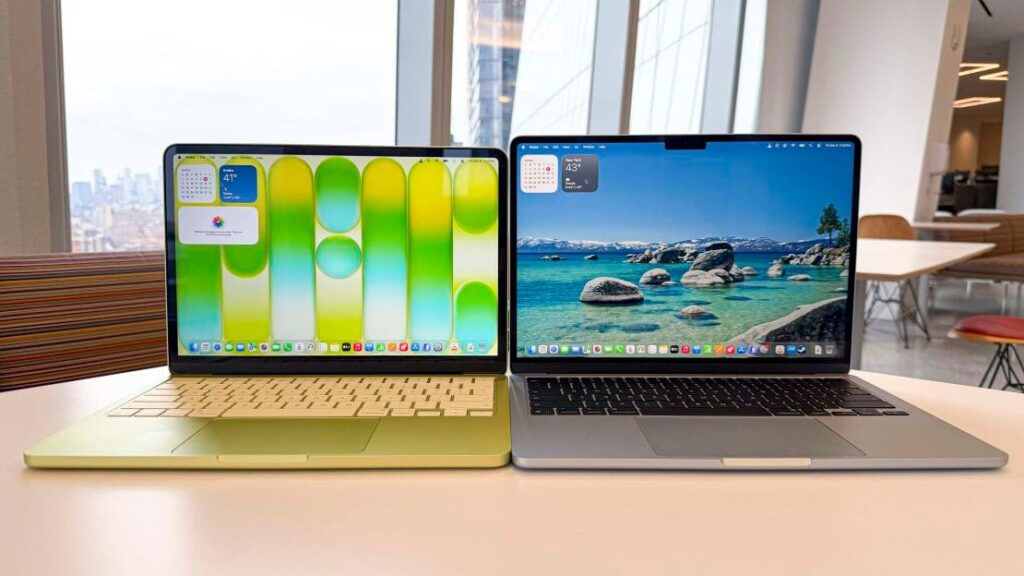
You can see some of the most significant differences when the lid is open. The 13-inch display’s bezel is thicker than that of the Air or Pro, but it’s still reasonable for a product at this price. A good thing is that Apple can fit the webcam in the bezel without a notch, which many are pleased with it.
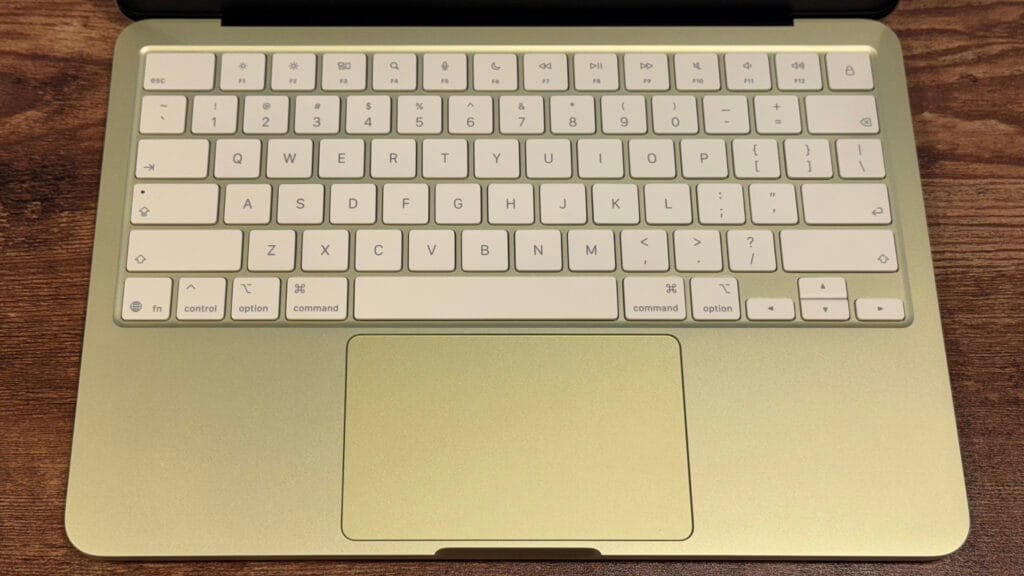
Although they are a little more subdued than the rest of the laptop, the keyboard’s color-matched keys also give it a tint. This device has a smaller footprint in certain ways, but the touchpad isn’t as expansive.
The MacBook Neo weighs 2.7 pounds and has dimensions of 11.71 x 8.12 x 0.5 inches. It is 0.6 mm taller than the 13-inch MacBook Air but has a lower footprint. They have the same weight. You won’t be able to distinguish between the two in a backpack.
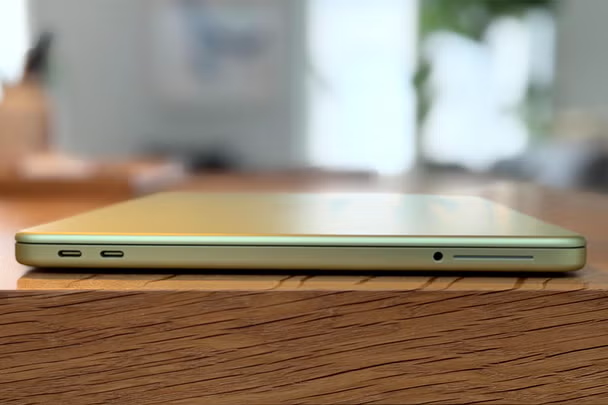
The Neo’s ports are all located on its left side. The 3.5 mm headphone jack and two USB-C ports – one USB 3 (10Gb/s, DisplayPort compatible) and one USB 2 port. To mention that neither port is labeled.
MacBook Neo Specs
CPU
Apple A18 Pro (6-core CPU with 2 performance cores, 4 efficiency cores)
Graphics
5-core GPU
Neural Engine
16 cores
Memory
8GB LPDDR5 unified memory
Storage
256GB SSD
Display
13.0-inch, 2408 x 1506, Liquid Retina LED, IPS, 60 Hz
Networking
Wi-Fi 6E, Bluetooth 6
Ports
USB-C 3 (10Gb/s), USB-C 2 (480Mb/s), 3.5 mm headphone jack
Camera
1080p FaceTime HD camera
Battery
36.5 WHr
Power Adapter
20W USB-C
Operating System
macOS Tahoe 26.3.1
Dimensions (WxDxH)
11.71 x 8.12 x 0.5 inches (297.5 x 206.4 x 12.7 mm)
Weight
2.7 pounds (1.23 kg)
Price (as configured)
$599
The MacBook Neo is powered by Apple’s A18 Pro. The iPhone 16 Pro was the first device to use this processor. In a way, the A18 Pro validates what reviewers have been saying for years: smartphone CPUs are too powerful.
Six CPU cores total—two performance cores and four efficiency cores—are found in the A18 Pro that Apple uses with the MacBook Neo. The GPU has five cores, which is one fewer than the version found in the flagship iPhone from 2024.
Additionally, the system-on-a-chip has 8GB of RAM. Some hardware enthusiasts said it was insufficient when Apple made that announcement.
There aren’t many laptops with 16GB of RAM for $599. Many of them will make additional concessions. If local AI doesn’t become a popular in the near future, many individuals will purchase this type of laptop and they will be able to get by with 8GB of RAM for at least a few years.
Display
With a resolution of 2,408 x 1,506, the MacBook Neo’s 13-inch screen is remarkably high for its price. Depending on the aspect ratio, you would often find a 1080p or 1280p screen, but this one is closer to 1440p (give or take a few pixels on each end). At this price, the display’s refresh rate of 60 Hz makes sense.
It was a wise investment to spend money on the LED, IPS screen, which is the same kind of panel used on the MacBook Air. However, it lacks True Tone, a function that modifies the color temperature of the screen according to your surroundings by using an ambient light sensor, which this laptop does not have.
The Neo’s screen filled 78.8% of the DCI-P3 color space and 110.9% of the sRGB color volume area on the colorimeter (although the system does not support the DCI-P3 color space). The Neo’s brightness was measured at 452.6 nits.
Keyboard and touchpad
The MacBook Neo’s Apple keyboard is nice, but it’s not backlit. Nobody would mind darker legends, but is a good keyboard overall.
The keyboard is decent on its own. The keyboard of the MacBook Air is comparable to the one millimeter of travel. It feels a little stiffer than Apple’s previous devices. On the monkeytype typing test, we was still able to move quickly and get 116 words per minute and 98% accuracy.
The top right key on the base model Neo is a lock button. Touch ID is available on the 512GB model, and I believe it’s worth the extra $100 to log in and make purchases more quickly and conveniently over the course of the device’s lifetime.
Unlike the luxurious “Force Touch” haptic touchpads found on the MacBook Air and Pro, the MacBook Neo’s touchpad is mechanical. However, unlike many low-cost devices, Apple’s touchpad allows you to click wherever on it. I had no trouble using any of the gestures on macOS Tahoe, and the click feels good. This touchpad is quite simple to use because you may click at the top of it without being stopped by the hinge positioning.
Audio
The MacBook Neo contains two speakers, one on each side of the device.
These sound better than the speakers on the majority of low-cost Windows laptops, as well as some high-end models. However, they’re still doing really well overall.
When I put my hands on the wrist rest, the speakers, which are situated just beneath the keyboard deck, vibrate, especially at the loudest volumes.
Although it occurs on many rival computers, including some high-end Windows notebooks, I would still want to see Apple address this engineering issue in further notebook iterations.
High-impedance headphones, such as those found on the MacBook Pro and MacBook Air, are not compatible with the 3.5 mm headphone connection, but I doubt that a $599 laptop user would also want to use studio-quality headphones.
Battery life
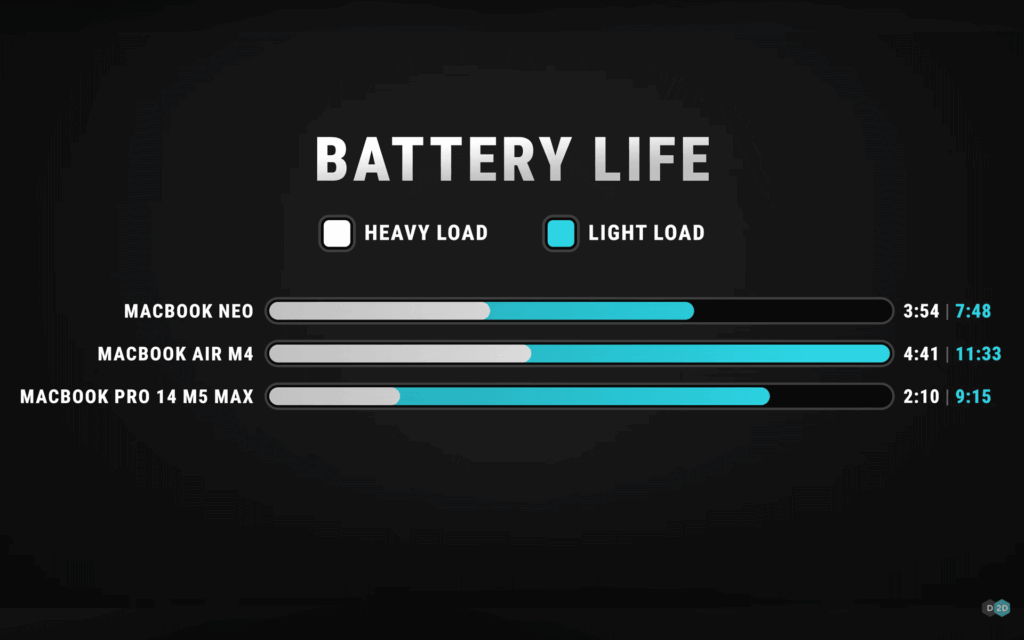
I wouldn’t quite call the MacBook’s battery life all-day, but it will last for a good amount of time before you need to charge it. Although the 36.5 WHr battery can only do so much, it’s good for the price.
The MacBook Neo run for 13 hours and 28 minutes on battery test, which included streaming video, web browsing, and a light OpenGL graphics test with the screen at 150 nits.
The MacBook Neo did not come with fast-charging technologies from Apple. Using the provided 20-watt charger, the laptop was totally discharged and charged to 22% in 30 minutes. After an additional half hour, the charge precisely doubled to 44%.
Software
Tahoe 26.3.1, the most recent version of macOS, is included with the MacBook Neo. It introduces the “Liquid Glass” design language that Mac users who have never used an iPhone or iPad may already be accustomed to. Among Mac enthusiasts, the use of translucent effects and numerous icons in menus has caused controversy, but we don’t think it will be as polarizing among people who use Windows, ChromeOS, or even a phone.
Like its more costly brothers, the MacBook Neo comes with a ton of pre-installed software. The Safari web browser, Messages for texting and iMessage, FaceTime, a new phone app, Notes, Reminders, Photos, Mail, Calendar, and service-based applications like Music, Apple TV, and News are some of them.
One of the most loved feature from the past several years is iPhone Mirroring, which allows you to use your phone from your computer if you have an iPhone and a Neo.
MacOS comes with a number of free workflow applications, including Pages, Numbers, and Keynote. Although they aren’t included, many of the most popular software you might want, including Microsoft Office, are accessible as native apps for Apple Silicon in the App Store. Despite its abundance, macOS doesn’t feel bloated.
MacBook Neo Configurations
The Neo’s setting choices are really straightforward thanks to Apple.
The A18 Pro chip, 8GB of RAM, and 256GB SSD are available for $599. You can get the exact same machine for $699, but with Touch ID and a 512GB storage upgrade. Color is the only other option available to you.
Spending the additional $100 is, in my opinion, a wise investment for everybody. Touch ID is far faster than entering a password, and the additional storage is fantastic for papers, music, and pictures.
A one-year warranty is included with the MacBook Neo. It costs $4.99 a month or $49.99 a year for those who choose to use AppleCare+ for longer protection (or you can add it to an Apple Care One plan for $19.99 a month for three devices).
As a final word
The MacBook Neo does indeed cost $599. However, it doesn’t often feel like way. Apple made investments in a good keyboard and mouse, a bright, high-quality screen, and a premium aluminum chassis. These are the aspects of a laptop that most people are most concerned about, aside from performance. When you include a battery life of roughly 13 hours, you have a machine that can perform the most frequent tasks for the majority of people in a packaging that feels exceptional.
The MacBook Neo will work perfectly for the majority of people completing the most of tasks, including web browsing, emailing, writing papers, shopping, and even light photo editing. The A18 Pro’s powerful single-core performance will satisfy many people’s basic demands.
And in comparison to the numerous plastic devices with subpar screens you see when you enter a big-box store, the Neo will appear incredibly appealing to such individuals. Officially, all other PC manufacturers producing notebooks under $700 are on notice.
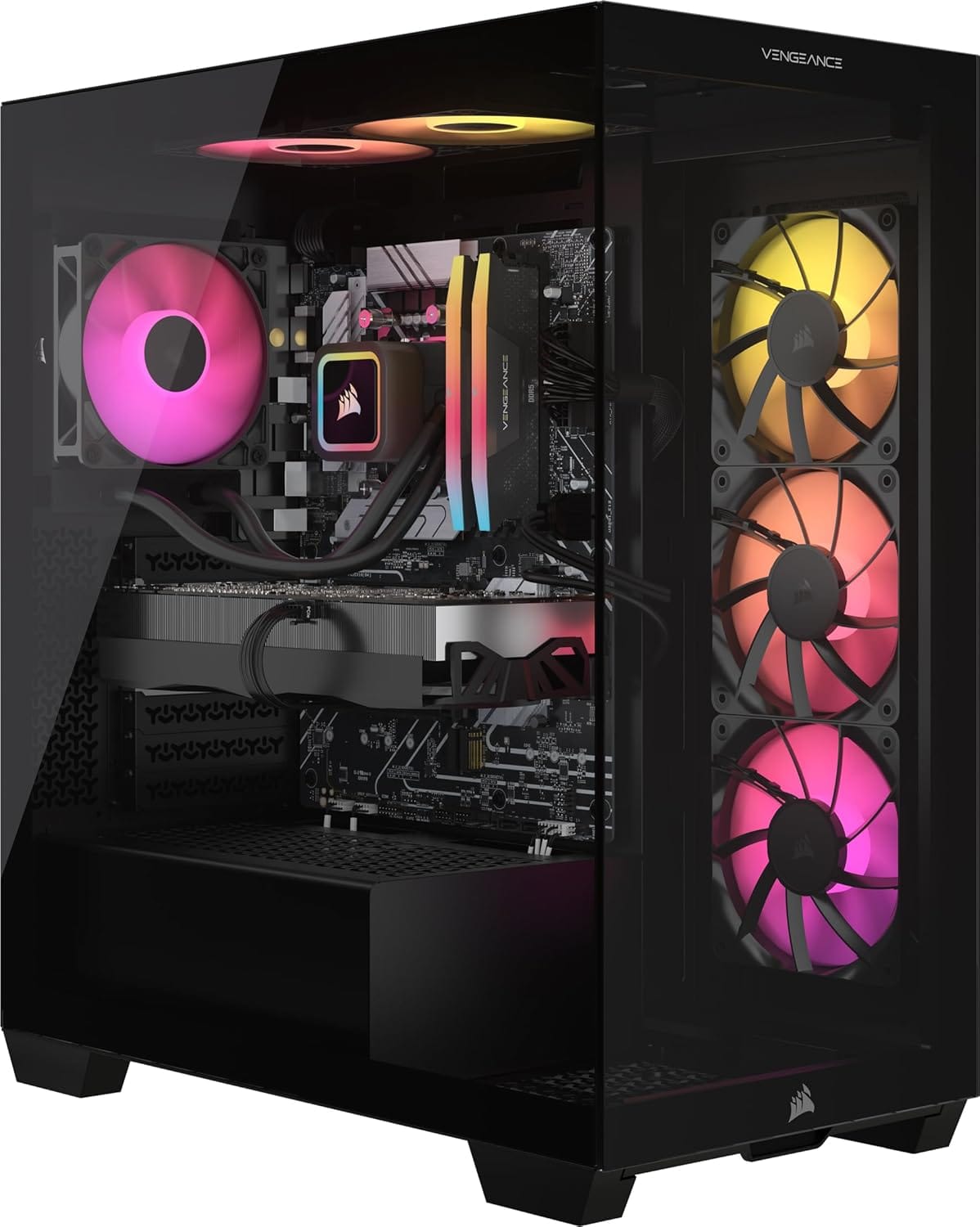
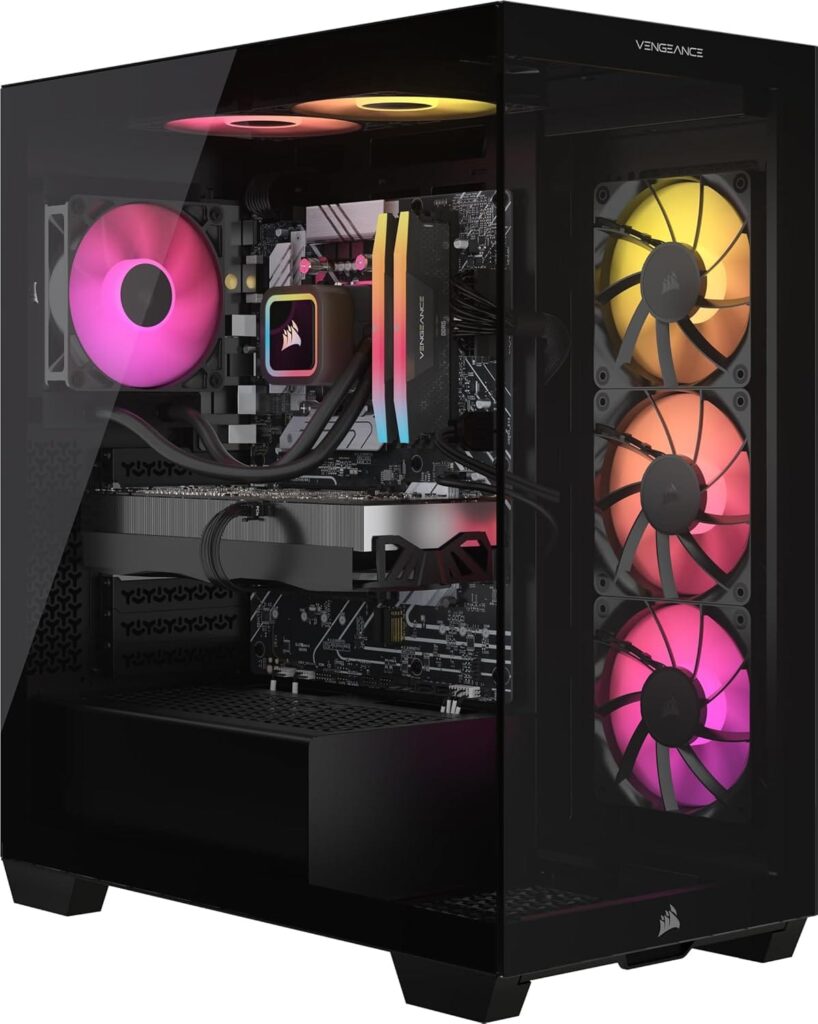
Amazon currently has this fantastic Corsair Vengeance i7500 gaming PC for $400 less, down from $3,699.99 to $3,299.99. Corsair gaming PCs are among the best in terms of construction quality and are equipped with premium parts of their own. Its RTX 5080 and Intel i9-14900KF processor are accompanied by a sleek 3500X mid-tower case, Vengeance RGB DDR5 RAM, and a potent Corsair Nautilus RS aRGB liquid CPU cooling. With the addition of a 2TB SSD, you get a well-rounded, high-performing system that is excellent for gaming, creating content, and other uses.
Corsair Vengeance i7500 gaming PC specs
RTX 5080 graphics
A powerful tool for creatives, this graphics card is among the best for 4K gaming. The RTX 5080 is based on Nvidia’s new Blackwell architecture and has 16GB of upgraded GDDR7 memory. This indicates that the upcoming 5th-generation tensor cores will greatly increase AI performance, while the most recent 4th-generation ray-tracing cores will greatly improve ray-tracing capabilities. Additionally, there is MFG upscaling, which is unique to the 50-series and significantly increases apparent framerates. For a more thorough analysis, see our complete review.
Intel Core i9-14900KF processor
With a very high boost clock speed of 6GHz, a sizable 36MB L3 cache, and an impressively high core and thread count of 24 and 32, the i9-14900KF is one of the most powerful processors available from the 14th-generation Intel lineup. It is a good choice for demanding multitasking as well as 1440p and 4K gaming. For additional information, see our complete review here.
Memory (RAM and storage)
As is generally the case with most RTX 5080 PCs, this setup has a good 32GB of DDR5, which is perfect for gaming, multitasking, and running demanding creative programs. Additionally, there is a sizable 2TB SSD, which is probably the ideal size for the majority of users and offers enough of space for games and other big files, such as 4K video.
Things to consider
Considering the cost of this high-end configuration, it could be worthwhile to investigate alternative CPU options. Although the i9-14900 is a fast CPU, it runs hot and is built on the outdated LGA 1700 socket. If you wish to move to the Intel Core Ultra series, you’ll need to get a new motherboard that supports the LGA 1851 socket. In summary, compared to some other RTX 5080 models, this PC isn’t quite as future-proof. Check out some RTX 5080 and Ryzen 9 9900X3D models for something a little more future-proof for about the same price if you want great gaming performance but something with a high core and thread count.
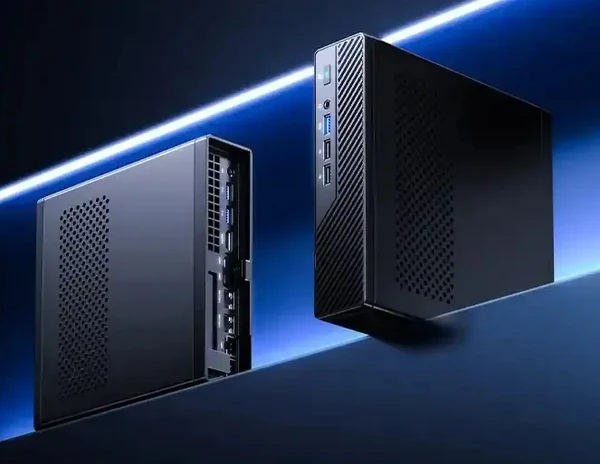
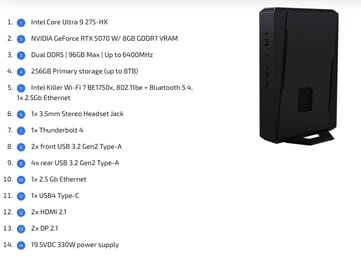
With RTX 5070/5060 laptop GPUs and Arrow Lake-HX CPUs with up to 24 cores, the SimplyNUC “Jean Canyon” 15 Performance is now available. The gaming small PC boasts a simple outer appearance, plenty of connectivity, and up to 96 GB DDR5 RAM, all of which promise top-tier performance without being overtly advertised.
In the area of small systems with strong internal components, SimplyNUC is a fairly well-known brand. The Jean Canyon NUC 15 Performance, a gaming small PC designed for demanding applications requiring high performance, has begun selling from the mini PC manufacturer.
NUC 15 Performance: 24-core Core with 96 GB RAM
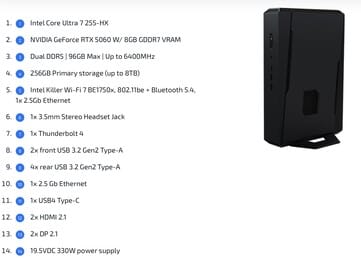
The 3-liter NUC 15 Performance gaming mini PC is powered by Intel Core Ultra 200 HX-class CPUs and comes with a 24-core Core Ultra 9 275HX or a 20-core Core Ultra 7 255HX CPU. The Ultra 7 255HX boasts a 5.2 GHz max boost lock and claims multithreaded performance comparable to that of the Ryzen 9 8940HX and the Apple M4 Pro.
With four extra cores, the Core Ultra 9 275HX offers a significant 20% boost in multithreaded performance over the already potent 255HX, putting it in line with the AMD Ryzen 9 9955HX3D and the Apple M4 Max SoC. To put it another way, both CPUs are more than capable of managing the great majority of demanding CPU and gaming workloads.
This tiny mini PC delivers big performance with discrete RTX 50 Laptop graphics
Furthermore, strong discrete GPUs are also included in the NUC 15 Performance tiny PC. The more expensive Core Ultra 9 model has the RTX 5070 Laptop GPU, while the Core Ultra 7 model has the RTX 5060 Laptop. Although the RTX 5070 has faster memory (512 GB/s vs 384 GB/s), both cards have 8 GB of GDDR7 VRAM.
When it comes to raw performance, cooling will be quite important. The RTX 5070 model should be about 13% faster because the small PC stays well inside its bounds. On paper, the Jean Canyon NUC 15’s triple-fan configuration with dual vapor chambers sounds fantastic, according to SimplyNUC.
Additionally, the available I/O is really impressive:
Six USB 3.2 Gen 2 Type-A
Thunderbolt 4 Type-C, USB4 Type-C
Dual HDMI 2.1, dual DisplayPort 2.1
Audio jack (3.5 mm)
2.5G Ethernet
WiFi 7, Bluetooth 5.4
Up to 96 GB of DDR5-6400 (dual SODIMMs) and up to 8 TB of solid-state storage (dual M.2 2280 slots – PCIe 5.0 x4 and PCIe 4.0 x4) meet memory and storage needs. To place a purchase, interested buyers will need to get in touch with SimplyNUC directly.
Pricing and availability
Although we are aware that the cheapest models will come with a 256 GB storage drive and 16 GB of memory, pricing information is still unknown. The NUC 15 Performance gaming small PC is expected to fetch a premium price tag given its high-end specifications.
Hold off on updating any of your devices if you’re a member of Apple’s developer program. A few hours after going live, Apple removed the most recent iOS 17.3 Beta 2 update. Why? Some iPhones were reportedly bricked by the update, resulting in endless boot loop problems for the impacted devices.
The second iOS 17.3 beta was quickly taken down from the developer’s center and over-the-air channel. It did not specify when users would be able to access the software once more. But it’s probably already fixed, and before returning it to testers, more firmware testing will be done.
For those interested in learning more, numerous customers have reported on various channels that some iPhones are not functioning properly due to the second beta of iOS 17.3. Some people reported that their iPhone 15 (review) was stuck with a flashing cogwheel, while others reported an endless reboot loop. The problem also seems to impact older iPhone models, such as the iPhone 14, and its underlying cause is said to have enabled the Back Tap gesture.
How to fix an iOS 17.3 Beta 2 boot loop on your iPhone
It was noted that the issue cannot be resolved with a hard reset. Instead, users must download the iOS 17.3 Beta 1 in IPSW file format after plugging their iPhone into a laptop or MacBook to start it in recovery mode. After that, third-party applications like Finder or iMazing can be used to install the firmware.
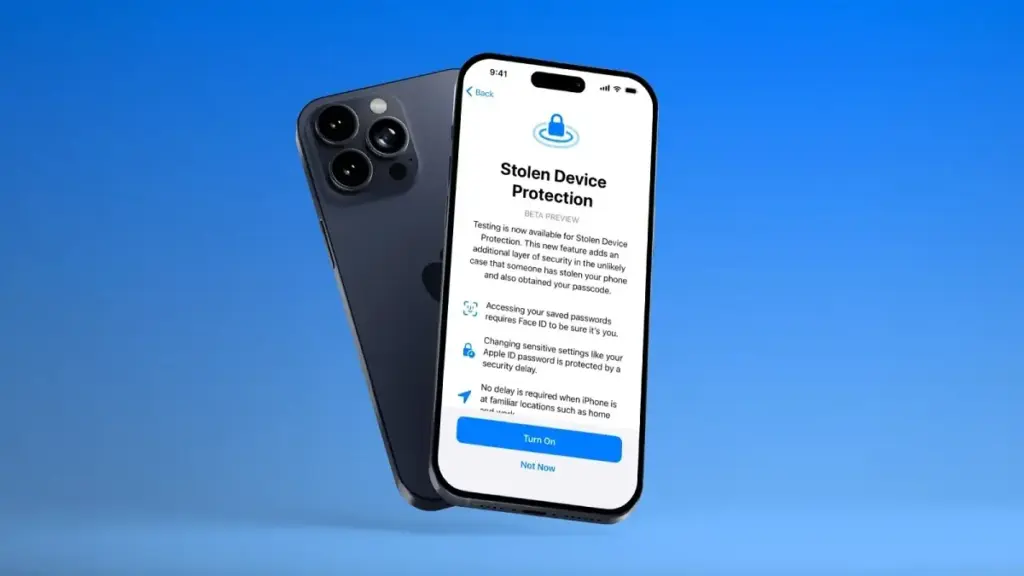
To begin with, a Stolen Device functionality was present in the previous iOS 17.3 beta edition. This is an improved security technique to stop people from fully taking control of stolen iPhones with exposed passcodes. When using Apple Pay and gaining access to Apple accounts and passwords, it adds additional procedures like Face ID.
The Journal app and Spatial Video mode for the iPhone 15 Pro and iPhone 15 Pro Max, which were first released in iOS 17.2, are anticipated to be updated in iOS 17.3. Although it was removed from the iOS 17.2 RC edition, Apple Music’s collaborative playlists functionality will also return.
During the Google I/O keynote, the firm emphasized how people are now leveraging AI to make more complex searches. Although this change makes perfect logic, it’s nevertheless amazing to watch how web search is developing. I had to learn how to ask Google questions that it could comprehend when I was a child in the 1990s. AI must comprehend our inquiries, according to the new paradigm of today.
This eliminates the need for us to look up topics like “iPhone 17 Air camera rumors.” Alternatively, we may ask Gemini or ChatGPT: “I know Apple is going to introduce a new iPhone this year.” What do you know about the most recent camera rumors and the alleged iPhone 17 Air? I want to see the top five reports about it.
Although that’s a significant shift, it makes perfect sense. You wouldn’t use keywords alone to communicate with a friend, after all. You express your feelings, ideas, and background. Conversations operate in this manner. For this reason, it’s worthwhile to grasp some popular prompt strategies and how ChatGPT can simplify daily work if you’re just getting started.
More significantly, this post will teach you how to make the most of ChatGPT by learning professional advice that will enable you to consistently receive replies that are more comprehensive and clear.
5 expert prompt tips to level up your ChatGPT experience
In contrast to conventional search engines, ChatGPT functions best when it has a clear beginning point, context, examples, a preferred style, and some comprehension of your logic. A straightforward inquiry might not be sufficient. Try these five professional suggestions if you want the greatest answers:
Role prompting
Role-playing is warmly received by ChatGPT. Although it may seem strange at first, it’s an effective method to establish the tone and scope of your question. Saying, “Explain this like I’m 12,” for instance, will result in an extremely simplistic explanation. “Pretend you’re a PhD professor with 30+ years of experience in sociology,” however, will elicit a far more sophisticated and critical response.
Give examples
Giving examples is one of the best ways to get ChatGPT to write something, summarize text, or respond to an email. Provide an example of your typical writing style if the AI is writing an email for you. Alternatively, you may say, “I want you to reproduce a comparable drawing.” The outcome is more accurate the more instances you provide.
Don’t forget about the context
Another crucial piece of advice is to constantly provide context. Why are you posing this query? What are you already aware of? What do you anticipate from the response? Are you writing an essay, conducting research, or are you just inquisitive? ChatGPT can better adapt its answer to your demands if it has additional context.
Choose the personality
Telling ChatGPT how you want the response to sound is also useful. You may want the tone to be upbeat, instructive, and full of examples if you’re learning a new language. You might ask for something succinct and data-driven if you want a direct response. Composing a piece of writing? Adjectives such as hilarious, ironic, dramatic, or thought-provoking might be used to set the tone.
Using step-by-step reasoning
Lastly, allow ChatGPT to guide you through the procedure if your query calls for a complicated or multi-part response. For instance, in logic puzzles or math problems, ask it to describe how it arrived at its conclusion. This enables you to comprehend its logic and identify possible mistakes.
You may significantly improve your ChatGPT experience by using these five professional recommendations. These strategies will enable you to fully utilize AI-powered interactions if you haven’t been receiving the responses you were hoping for.
Animation Scales might sound like a hidden geek setting, but tweaking them is one of the easiest ways to make your Android phone feel instantly faster and more responsive. When apps seem to open in slow motion, or menus feel like they lag for a second before appearing, Animation Scales are usually part of the story. Adjusting them takes just a couple of minutes and can transform how “snappy” your device feels in daily use.
In this guide, you will learn what Animation Scales are, where to find them in Android Developer Settings, which values to use for the best experience, and when it might be better not to touch them at all. The goal is simple: use Animation Scales to make your phone feel smoother and faster without breaking anything or risking your data.
What are animation scales?
Animation Scales control how long Android spends showing visual transitions. They do not change the hardware speed of your device, but they change how fast things appear on screen. That difference is important: you are not overclocking your phone, you are simply shortening the time Android spends on “fancy” animations.
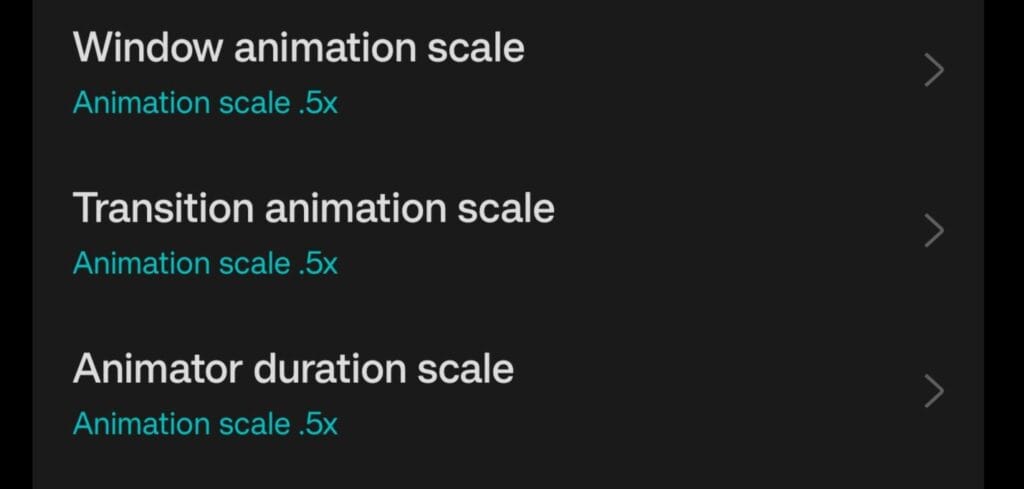
There are three main Animation Scales entries in Developer Options:
Window animation scale – controls how quickly app windows open and close.
Transition animation scale – controls screen-to-screen transitions, such as moving between menus or apps.
Animator duration scale – controls the duration of various UI animations, like fading, sliding, or expanding elements.
By default, all three are set to 1x, which means “normal” speed. If you lower them (for example, to 0.5x), animations play twice as fast. If you turn them off, Android skips animations altogether and shows everything instantly.
Why tweak Animation Scales?
Modern Android devices, even midrange phones, are powerful enough for most tasks. However, default animations are designed to look smooth and pleasant, not necessarily to feel “instant.” Tuning Animation Scales lets you shift that balance toward responsiveness.
Here is what you gain when you tweak Animation Scales:
Your phone feels much faster, even though the processor and RAM are unchanged.
You spend less time waiting for screens to open and close.
In some cases, you may see a small improvement in battery life, because the system spends less time rendering long animations.
Some people argue that Animation Scales do not “really” improve speed because they do not increase raw performance. Technically, that is true, but the improvement in perceived speed is very real. You care about how fast your phone feels, not just benchmarks.
How to Unlock Developer Options Safely
Animation Scales live inside the Developer Options menu. This menu is hidden by default, but unlocking it is safe as long as you only change what you understand.
To enable Developer Options:
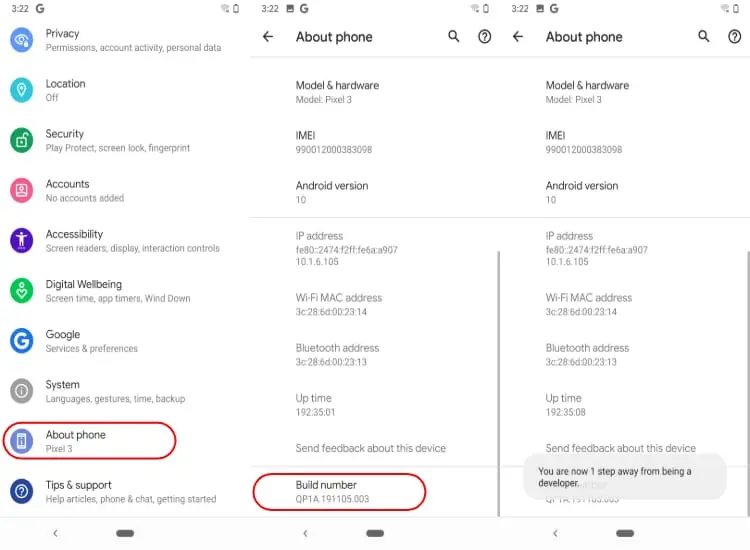
Open Settings on your Android phone.
Scroll down and tap About phone (or About device, depending on your brand).
Find Build number.
Tap Build number seven times in a row.
You will see a message like “You are now a developer” or “Developer mode has been enabled”.
Go back to the main Settings screen and look for Developer options (often under System).
If you ever want to disable Developer Options later, on many devices you can simply toggle them off at the top of the Developer Options screen. On some phones, you might need to clear settings or restart, but just changing Animation Scales is not dangerous.
Where to find animation scales in Developer Settings
Once Developer Options are enabled, finding Animation Scales is straightforward. The exact path might vary slightly between brands, but the general flow is similar:
Open Settings.
Go to System (if available) and then Developer options, or directly to Developer options if your phone shows it at the main level.
Scroll down until you find:
Window animation scale
Transition animation scale
Animator duration scale
By default, all three entries are set to Animation scale 1x. This is the standard factory setting that most users never touch.
Best Animation Scales Settings for a Faster Feel
If you want your phone to feel noticeably faster without looking strange, the best starting point is to set all Animation Scales to 0.5x. This simple change cuts animation times in half while keeping everything visually smooth.
Recommended setup:
Window animation scale: 0.5x
Transition animation scale: 0.5x
Animator duration scale: 0.5x
With this configuration, apps and menus still animate, but they appear much faster. Your home screen feels sharper, transitions between apps are more energetic, and the whole system seems more responsive. Many power users and tech reviewers use this exact 0.5x setup on their own devices.
What if you turn Animation Scales off completely?
You might be tempted to set everything to Animation off for maximum speed. This does make Android skip animations, so screens open immediately. However, there are trade-offs.
Here is what happens when Animation Scales are turned off:
Transitions feel very abrupt, which some people find uncomfortable or “harsh”.
Certain apps are designed with animations in mind, and without them, the interface can look glitchy or jarring.
Navigating between screens can feel less intuitive because the movement of elements no longer tells your brain where you are going.
Turning Animation Scales off is not harmful, and some users love the ultra-instant feel. If you are curious, you can try it for a day or two. If it feels too aggressive, just go back to 0.5x or even 1x. Nothing permanent is changed.
Do animation scales affect battery life?
There is a common debate around this: do Animation Scales actually save battery? Technically, animations use the GPU and CPU to render visual effects. Shorter or fewer animations mean these components work for less time. So yes, there can be a small battery benefit.
That said, Animation Scales alone will not transform a weak battery into a monster. Think of them as part of a larger optimization strategy. When combined with other good practices—like using dark mode on OLED screens, limiting background apps, and enabling battery optimization—the impact adds up.
The main benefit of changing Animation Scales remains the improved feeling of speed and responsiveness. Any battery improvement is a nice bonus, not the primary reason to tweak them.
When you should leave animation scales at default
Even though Animation Scales are safe to adjust, there are cases where leaving them at 1x makes sense:
If you create tutorials or educational videos and want viewers to see the default Android behavior.
If the phone is used by someone who prefers slower, gentler transitions and may be confused by sudden changes.
If you work as a UI/UX designer or tester and need to experience apps as most users will see them.
For personal daily use, however, most people benefit from at least trying the 0.5x setup. It is a simple way to make a phone feel more modern and responsive without installing anything or rooting the device.
Extra safe tweaks around animation scales
Once you are in Developer Options, it is easy to start exploring other settings. Some of them can be useful, but you should be cautious. A few extra options that are generally safe, especially when you stick to light tweaks:
Disable absolute volume if you use Bluetooth headphones and want separate volume control for your phone and your audio device.
Show taps and Pointer location can help when recording screen tutorials but are not needed day to day.
Background process limit can be adjusted slightly if you want fewer apps staying in memory, but going too far can cause frequent reloads.
In contrast, options related to GPU debugging, strict mode, or forcing advanced graphics features should be left alone unless you know exactly what you are doing. Animation Scales are the simplest and safest way to get a noticeable improvement.
Step-by-step checklist
To make everything crystal clear, here is a quick checklist you can follow in a few minutes:
Go to Settings → About phone.
Tap Build number seven times to unlock Developer Options.
Return to Settings → System → Developer options (or directly Developer options).
Scroll down to:
Window animation scale
Transition animation scale
Animator duration scale
Change all three from 1x to 0.5x.
Use your phone normally for a day and see how it feels.
If you want it even snappier, test Animation off. If it feels too abrupt, go back to 0.5x.
These small adjustments can make your phone feel like it just got a software performance upgrade, even if the hardware is exactly the same.
Animation scales as a simple performance trick
Animation Scales in Android Developer Settings are a powerful but underrated tool. They do not require root, custom ROMs, or complex tweaks. You open a menu, change three values, and your phone suddenly feels more alive and responsive.
Instead of rushing to buy a new device when your phone feels slow, it is worth spending five minutes exploring Animation Scales. For many users, this single change is enough to restore a sense of speed and smoothness. It is a small tweak with a surprisingly big impact on how you experience your Android every day.
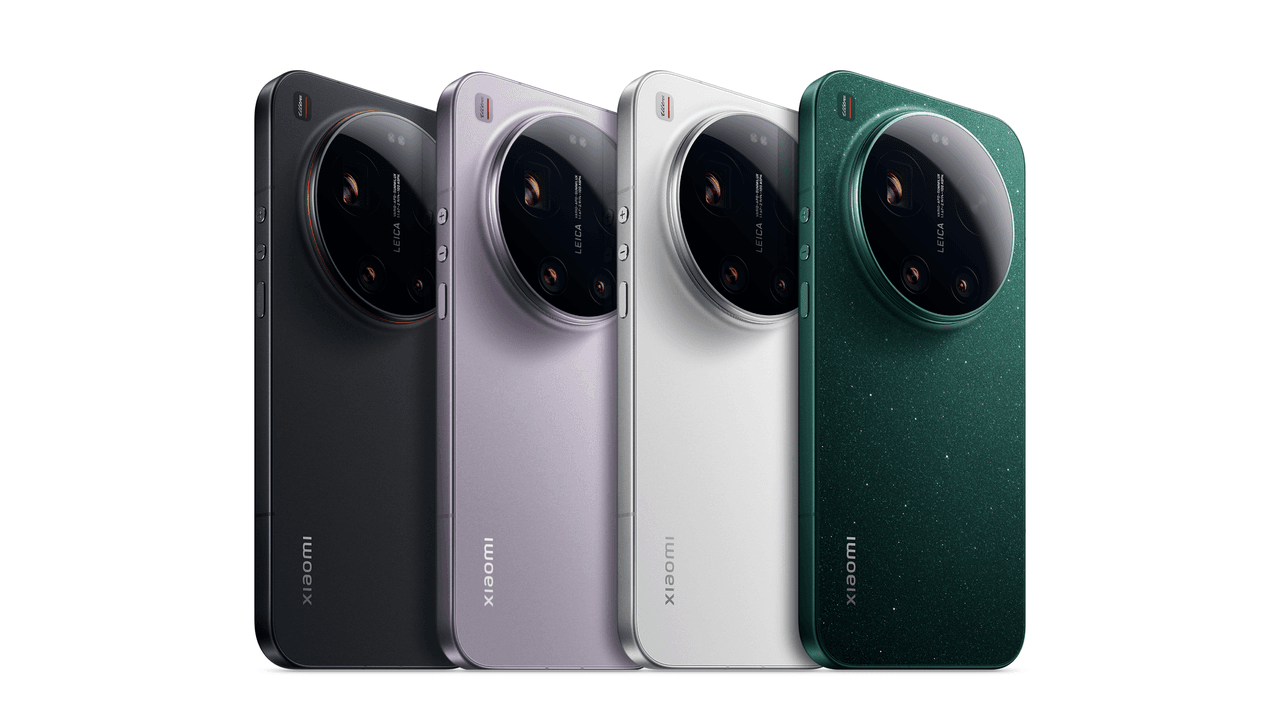
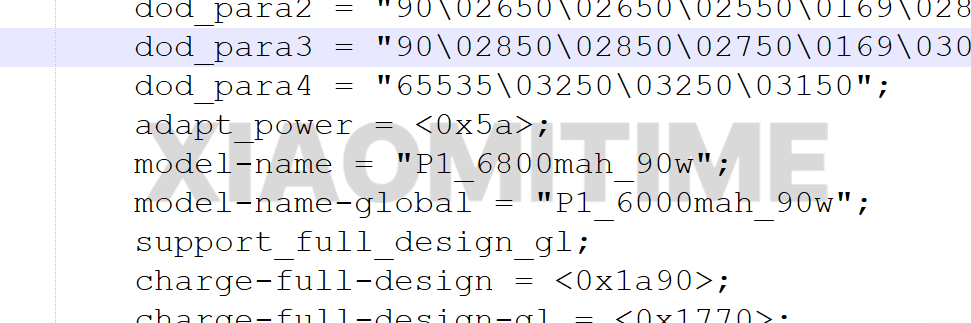
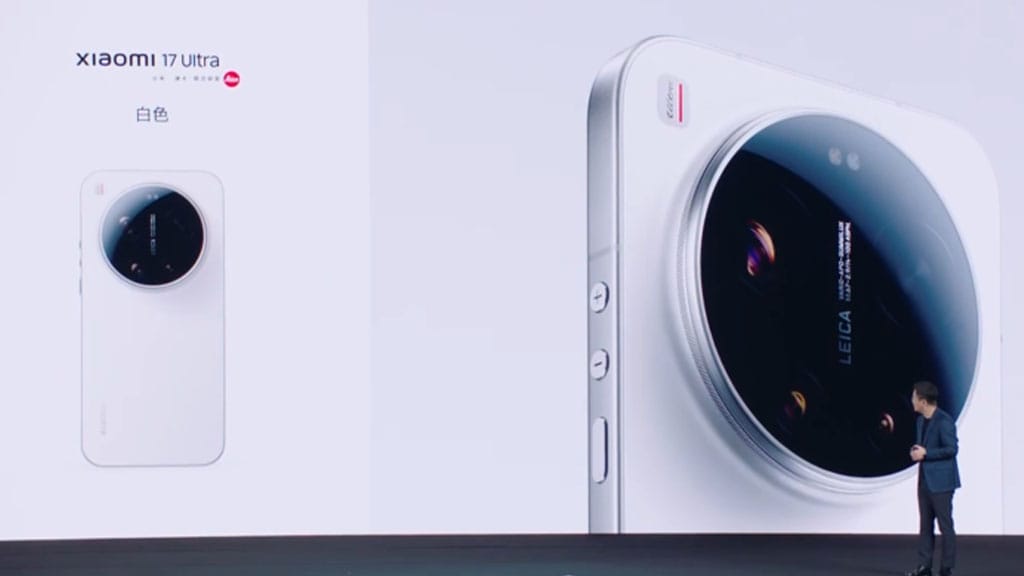
New information retrieved from MI code indicates that the company is developing a global version of the Xiaomi 17 Ultra, which differs significantly from the China-only variant in terms of hardware. In particular, the worldwide version will have a smaller battery. This modification does not affect the device’s basic positioning in terms of performance, but historically, Xiaomi has used similar strategies during international launches, so it is not surprising.
How battery size varies between China and global versions of the device
The most crucial difference between the two versions, however, is their battery size: although the Xiaomi 17 Ultra hits the Chinese market with a 6,800 mAh battery, its global counterpart will reportedly come with a 6,000 mAh unit. Looking at that, such a cut seems related more to different regional certification requirements and some internal design changes rather than cost-cutting measures.
Xiaomi is not altering the charging technology despite the lower battery. Additionally, the global Xiaomi 17 Ultra will enable 90W wired fast charging, guaranteeing competitive charging times and preserving the high-end user experience typical of the Ultra series.
Xiaomi 17 Ultra other specs
Everything else is largely consistent across areas, with the exception of the battery adjustment. Carrying on Xiaomi’s Ultra philosophy, the Xiaomi 17 Ultra will probably be heavily focused on camera performance.
The Xiaomi 17 Ultra will be among the most potent Android smartphones in its class thanks to its Snapdragon 8 Elite Gen 5 CPU. It is anticipated that the device’s memory and storage options will essentially stay the same across various markets.
About price
As memory and component costs rise, prices may also. In China, the Xiaomi 17 Ultra’s price may increase by 500–1000 yuan, or roughly $70–$140 USD. Global pricing has not yet been verified because these prices are based on data from China.
In the past, Xiaomi has modified its worldwide prices according to local market conditions, logistics, and taxes. The battery reduction is more of a strategic regional adaptation than a sign of a reduced market positioning.
The comprehensive budget, often called the master budget, is created by combining the strategic budget and the LOB development.
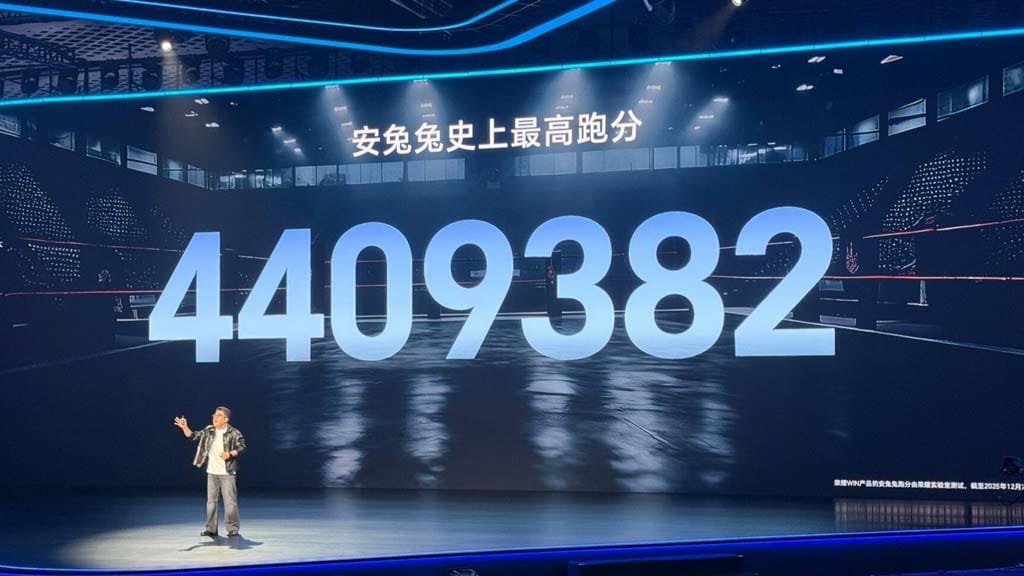
The recently announced Honor WIN series, which has raised the performance bar for all gaming devices on the market, has been hailed by Honor as the best e-sports phone of the year. On the AnTuTu listing, the lineup has received almost 4.4 million scores.
Honor said that the gaming phone scored 4,409,382 points on the AnTuTu test during the WIN Series launch event.
As a result, the Honor WIN smartphone has the greatest score ever. Thanks to its top-notch specs, the device has not only significantly increased gaming efficiency but also improved overall performance.
The Snapdragon 8 Elite Gen 5 chipset powers the WIN phone. This specific processor is paired with UFS 4.1 storage and LPDDR5X Ultra memory. All three elements come together to create a “top-of-the-line iron-like triangle.”
In addition to providing fast and fluid performance, all of these chip technologies can effortlessly manage complex games and multitasking situations.
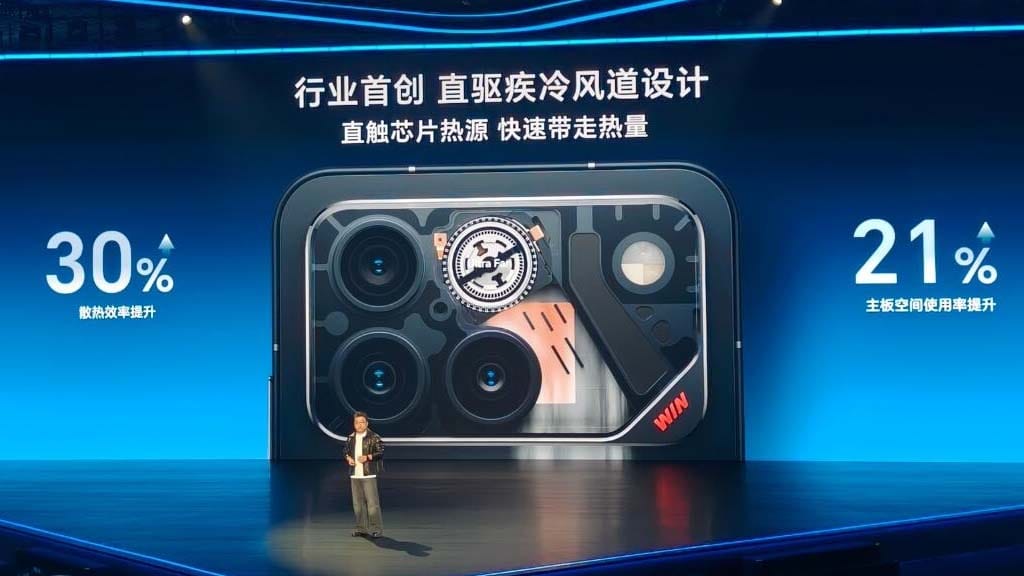
Conversely, the WIN Series represents a major advancement in cooling technology. The Ultra Cooling Fan, the tiniest, lightest, and fastest fan, is the initial addition.
Honor WIN set new benchmark records
It features the first quick cooling airflow design in the industry, which removes heat without impairing the phone’s functionality by coming into direct contact with the chip’s heat source.
A 3D butterfly wing VC cooling system is additionally connected to this fan. Because of this, even after sustained high-performance output, both power-packed components provide a reliable and effective cooling experience.
The device performs better in terms of dependability and durability thanks to Phantom Engine AI 3.0 and IP68 + IP69K standards. The remarkable and striking performance of the Honor WIN smartphones is a result of all these factors and characteristics.